
How to upload files via the cPanel FileManager?

If you don't want to use a 3rd party FTP Software, you can use the cPanel's built-in File Manager.

1. Log into your cPanel account.
2. In the "Files" section, click on the "File Manger" Icon.

 

3. cPanel File Manager will be open.

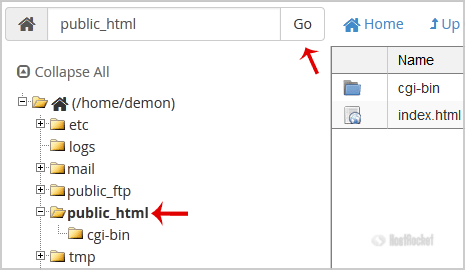
4. Navigate to the directory where you want to upload your files to. For example, should you wish to upload your file to the public html folder, you need to go to /public_html first. On the left side you can see a list of directories. Double Click on the "public_html" folder.

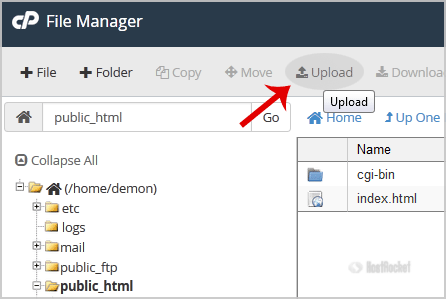
5. Now click on the "Upload" icon.

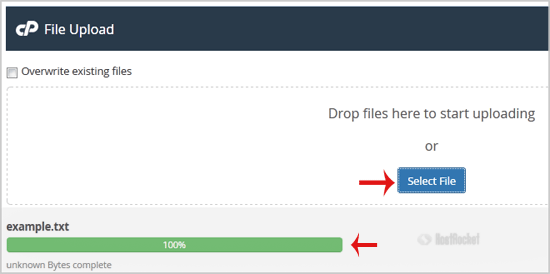
6. Click on the "Select File" button and select the file you want to upload from your PC. After you have select the file, the upload process will begin automatically.
  • 0 Los Usuarios han Encontrado Esto Útil
¿Fue útil la respuesta?

Artículos Relacionados

How to edit or remove MX Record in cPanel using the DNS Zone Editor?

You can edit or remove MX Record from cPanel using the cPanel DNS Zone Editor which allows you to...

How to create a new folder or files in the cPanel File Manager?

1. Log into your cPanel account.2. In the "Files" section, click on the "File Manger" Icon. 3....

Accessing your cPanel/Control Panel

The easiest method to access your accounts cPanel is to first login to the client area here:...

How to Edit or Delete Cronjob via cPanel?

How to Edit Cronjob?1. Log into your cPanel account.2. In the "Advanced" section, click on "Cron...

How to Update a Cronjob E-mail Address?

If you want to receive a cronjob error or notification, you can update your e-mail address from...